
Hands-on · written by the JJ Bot team · 21 November 2026
We make JJ Bot, so read this as a walk-through rather than an independent review. Here is exactly what happened when we added a server from the official MCP Registry on JJ Bot 0.3.169.
1. Search
In Marketplace → Connectors, under the ready-made connectors, is
Search the MCP Registry. We searched for weather.
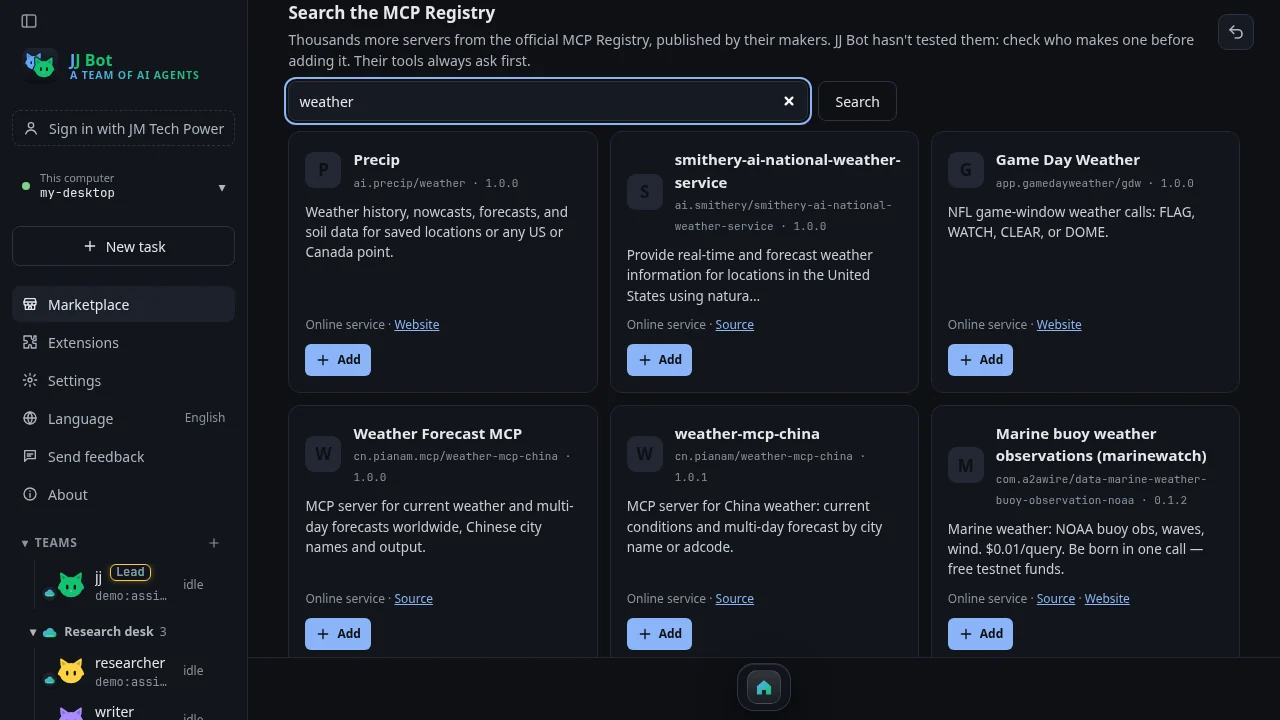
The results were a real mix: a US forecast service, an NFL game-day weather feed, two servers for weather in
China by city name, and some paid ones that charge per query. Each card shows the publisher's name (like
cn.pianam/weather-mcp-china), a one-line description, whether it's an online service or runs on
your computer, and links to its source or website.
2. Check who makes it, then add it
We picked weather-mcp-china, which gives current conditions and multi-day forecasts by city name. Add opens a short dialog that says plainly who published it, that JJ Bot hasn't tested it, and the address your bots' requests will go to.
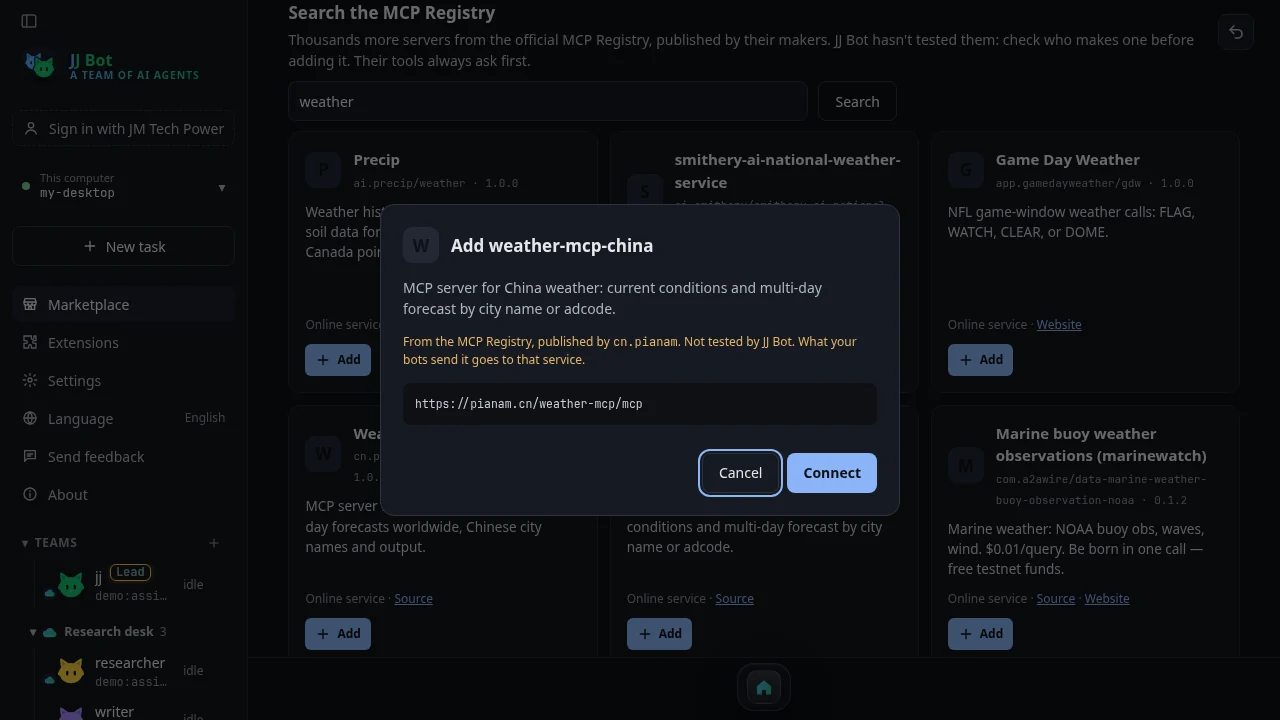
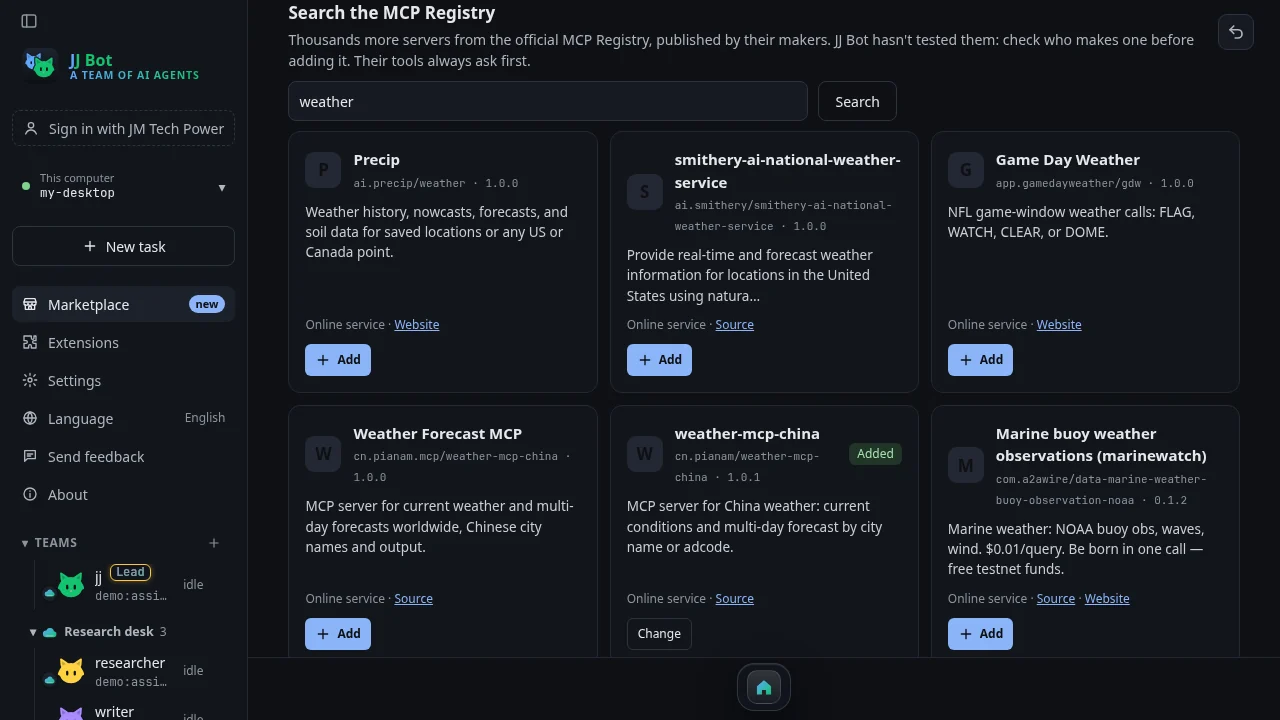
This one needed no key. For servers that do, the dialog asks for it here. We clicked Connect. JJ Bot connected first to check it works, then said the server was connected and that our bots have 1 new tool. The card now reads Added.
3. What changed
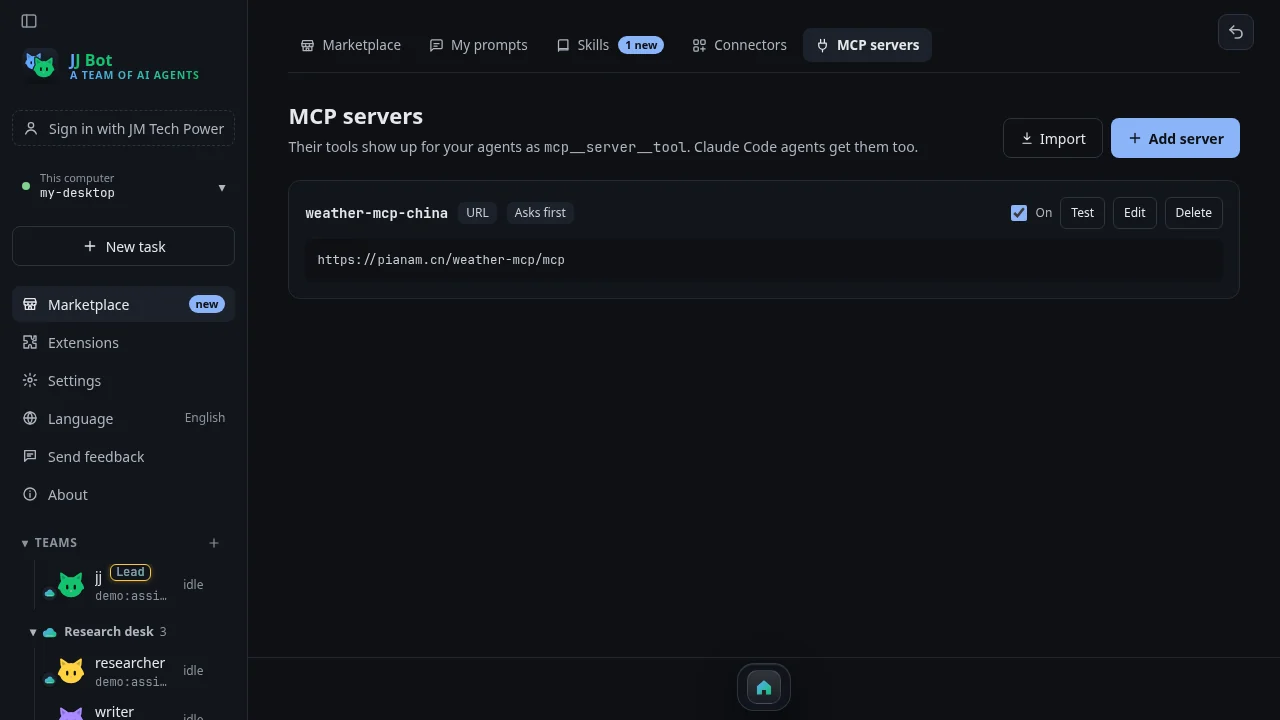
The server appears on the MCP servers page like any other, set to Asks first, with Test, Edit and Delete. Its tool reaches every bot, and each time a bot wants to use it, JJ Bot asks you first.
What we'd tell a friend
- Look at the publisher and the source link before adding. The Registry lists what makers publish; it doesn't vouch for them, and neither does JJ Bot.
- Read the description for prices. Some servers in our search charge per query.
- Docker images and .mcpb bundles can't be added yet. Online services and Node.js or Python servers can.
Get started: download JJ Bot, or read the overview of the new Marketplace.
Comments (0)
Please login to post comments
LoginNo comments yet. Be the first to comment!